

Setup
Before wiring Zed to Factory Droid, make sure you have Zed installed. Afterwards:- Install the Factory Droid extension.
- Open the Agent Panel.
- Click the + button in the top-right corner.
- In the agent dropdown, select Factory Droid.
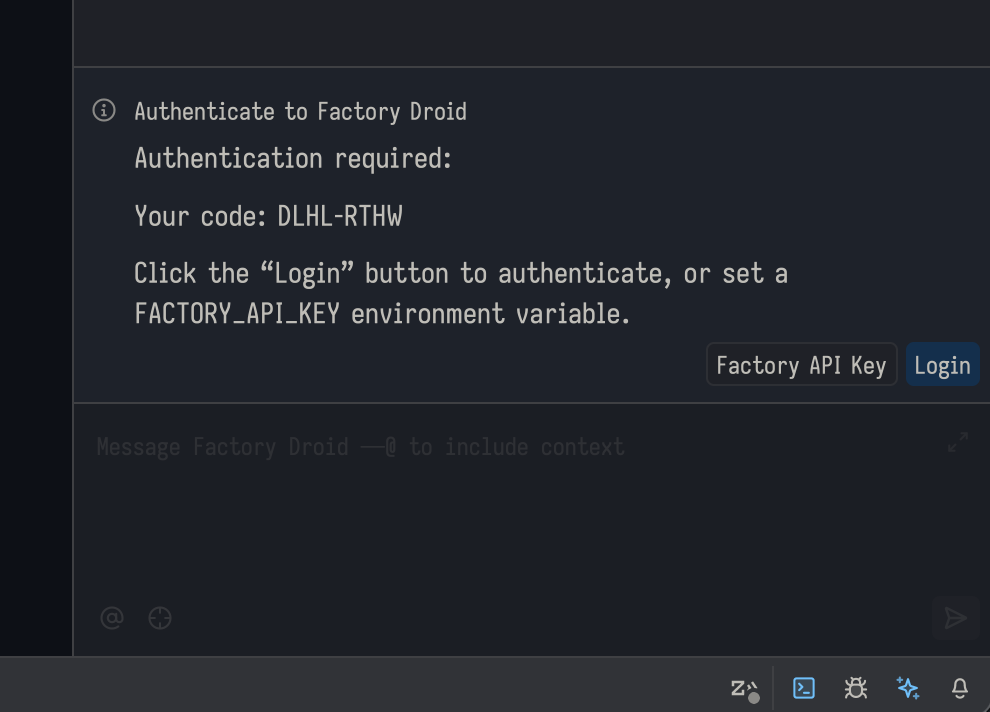
- If you are unauthenticated you will see a message indicating you must authenticate.
-
Keep track of the device code rendered, and click the “Login” button.
-
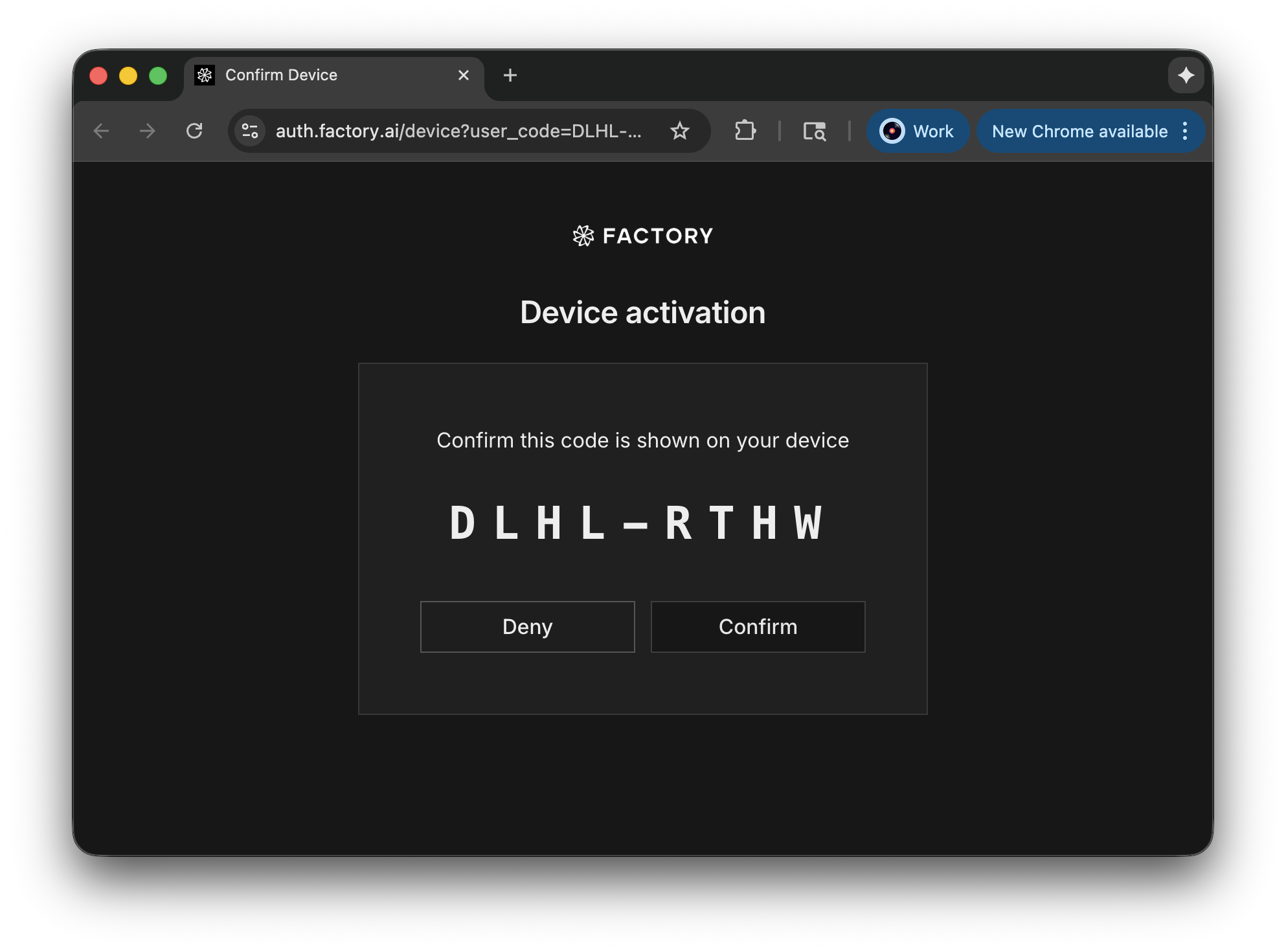
This will open your web browser and ask you to login/signup to Factory, followed by a screen to confirm your device’s code.
-
Keep track of the device code rendered, and click the “Login” button.
(Alternative) Manual Setup
If you prefer to manually configure Droid inside Zed, you can follow the instructions below.-
Install the Droid CLI (supported on all operating systems except Windows ARM machines)
-
Install via:
-
Ensure
droidis on your PATH, or note its full path.
-
Install via:
-
Zed installed
- Zed on macOS, Linux, or x86_64 Windows.
- Access to
~/.config/zed/settings.json.
-
(Optional) Factory API key - instead of using the login flow, you can set up an API key:
- Sign up at https://app.factory.ai.
- Configure billing if required.
- Create an API key at https://app.factory.ai/settings/api-keys.
- Set the
FACTORY_API_KEYenvironment variable in your shell (for example, addexport FACTORY_API_KEY=your_key_hereto your shell profile).
You cannot create a Factory account or manage billing from inside Zed. All
account setup happens in the Factory App.
Configure Factory Droid as an Agent (agent_servers)
Edit ~/.config/zed/settings.json and add a Factory Droid entry under agent_servers:
type: "custom"– tells Zed this is a user-defined agentcommand– full path to thedroidbinaryargs– run Droid in exec mode and speak ACP to Zed
env block:
Start a Droid Session in Zed
Onceagent_servers and context_servers are configured, you can start chatting with Droid from the Agent Panel.
Open the Agent Panel
- macOS:
Cmd+? - Linux/Windows:
Ctrl+?
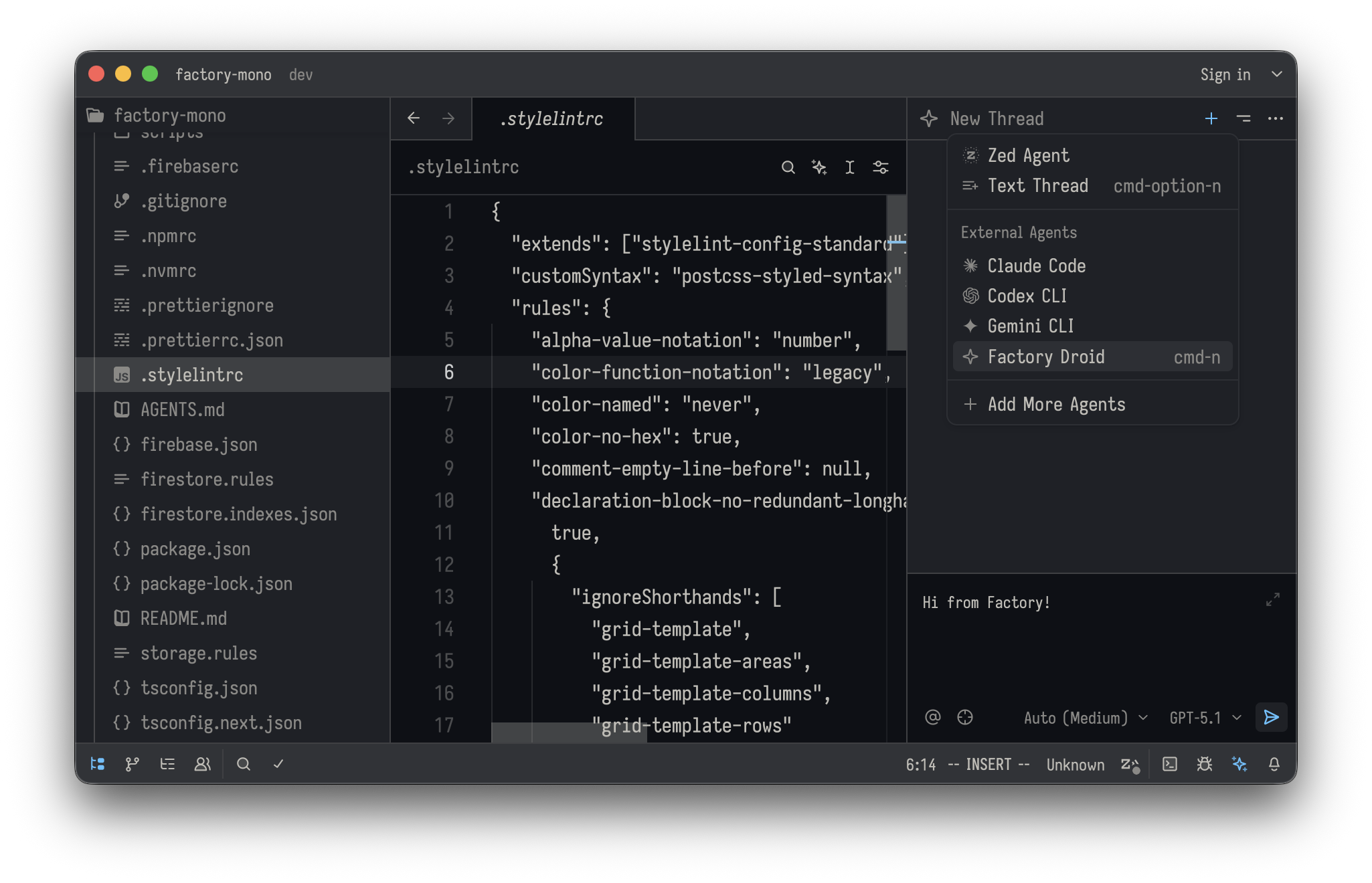
Start a New Chat with Factory Droid
- Open the Agent Panel.
- Click the + button in the top-right corner.
- In the agent dropdown, select Factory Droid.
- Start chatting.
Resume Existing Sessions
Zed does not currently provide a way to reload or restore past Factory Droid sessions from the Agent Panel.- Each Agent Panel conversation is effectively a fresh session.
- For longer work streams, keep the panel open or start new chats with a brief recap so Droid can quickly reorient.
Editor Context and Limitations
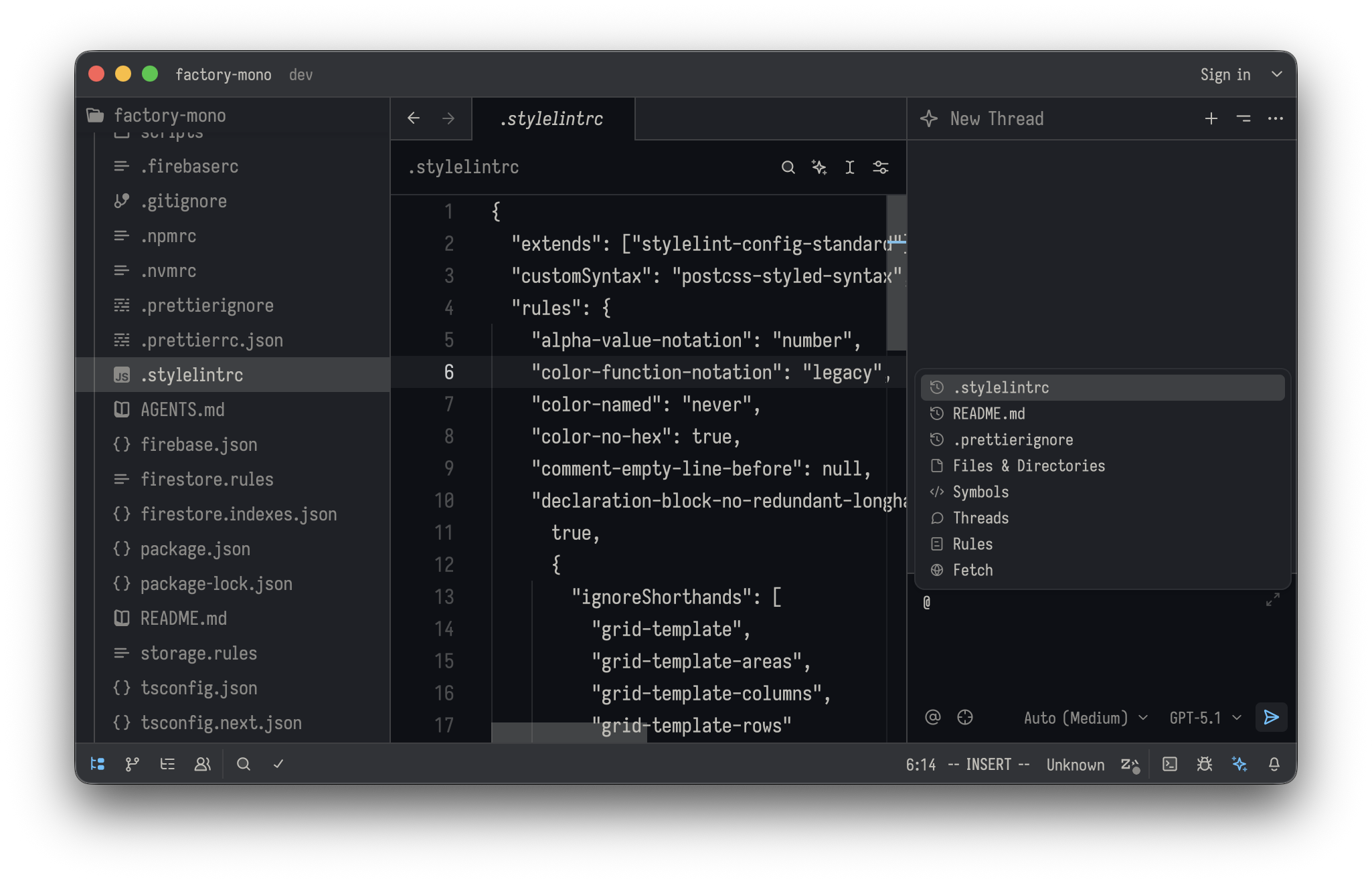
There is no dedicated Factory Droid plugin for Zed yet, but Zed supports@-tagging files inside agent chats.
- Use
@to reference relevant files when you ask Droid to inspect or modify code. - Combine
@-tags with plain-language instructions, just as you would in the CLI.
Models and Autonomy
Model selection and autonomy behavior inside Zed follow the same rules as the Droid CLI.- Choose your model and reasoning level using the same patterns described in Available Models.
- Use lower autonomy for planning and higher autonomy once you trust the plan.
- Zed supports
Shift+Tabfor switching autonomy modes, matching the default shortcut in the Droid CLI.
(Optional) Configure MCP Servers (context_servers)
Zed’s context_servers section is where you configure MCP servers. Each entry is a real MCP server that exposes tools and context, which Factory Droid can call while you chat.
For example, to add a Chrome DevTools MCP server:
chrome-devtools– server name used inside Zedcommand– executable to run (here,npx)args– how to launch the MCP server; update the package name to the actual server you want to use
context_servers for internal tools, data sources, or other services.
When you chat with Factory Droid in Zed, it can call any of these MCP servers as tools.
Troubleshooting
If Factory Droid does not appear or respond in Zed:- Verify the CLI:
- Run
droid exec --output-format acpin a regular terminal to ensure the CLI and API key work.
- Run
- Check
settings.json:- Confirm the
agent_serversandcontext_serversblocks are valid JSON (including commas and quotes). - Ensure the
commandandargsfor both Droid and your MCP servers run successfully outside Zed.
- Confirm the
- Confirm your OS:
- Make sure you are not running on Windows on ARM.
command and args used in context_servers to debug configuration or dependency issues.